
VoceVista Video 5.10.0


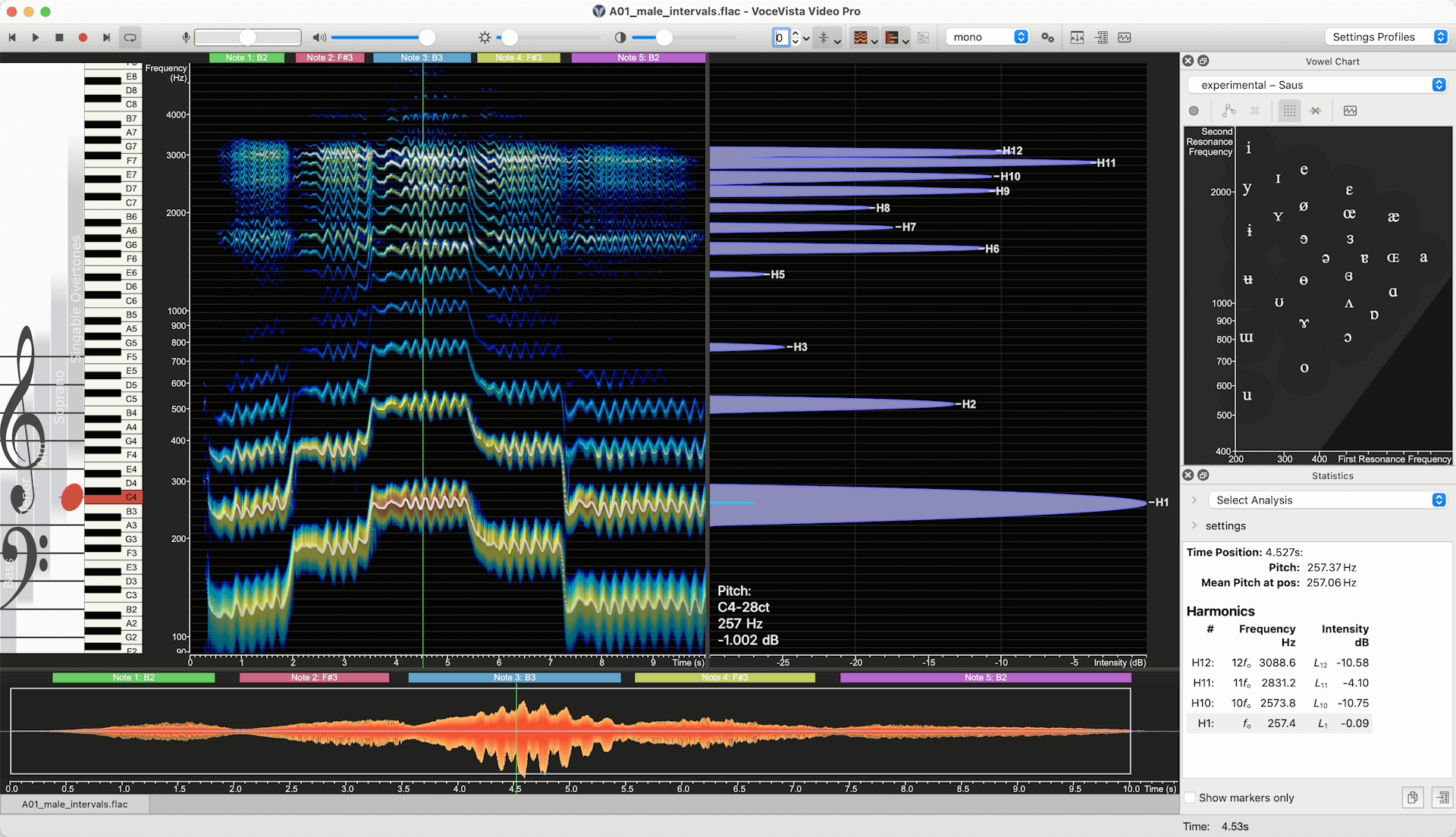
This update brings significant improvements to VoceVista Video with enhanced compatibility for the latest operating systems, new visualization features for spectral analysis, and refined tools for sound generation and frequency filtering. Key highlights include labeling of spectral harmonics, redesigned frequency filters, and spectral peak overlays on the spectrogram in VoceVista Video Pro.
New Features

All Editions

Visual Appearance and Display
  • label spectral harmonics
Audio Input/Output
  • allow selecting input channel from multi-channel devices
  • The Timeline now has an optional Amplitude Scale
System and Performance
  • improved compatibility with macOS Tahoe
  • improved compatibility with Windows 11
Settings and Configuration
  • time resolutions of spectrum and pitch
User Interface
  • Set slider frequency as text (via right-clicking on a Slider).
  • move selection: hold Alt while dragging the selection border to move the selection while keeping its with. When the Long Term Average Spectrum is synchronized with the selection, this allows to quickly scan the average spectrum over the file.
Sound Generator
  • new normalization options, don’t normalize magnitudes by default
  • step modifier: construct scales with volume steps synchronized with the pitch steps. We have a new Sound Generator sample profile: “05 Stepped Intensity Scale” to demonstrate this feature.

VVV edition and higher

Export
  • Export Image can include Vowel Chart
Frequency Filters
  • New visual design for Frequency Filters
  • solo filter button
Vowel Chart
  • new vowel chart profiles: experimental evenly spaced vowels, and “no vowels” for empty vowel chart, and new us profiles by Hillenbrand

VoceVista Video Pro

Visual Appearance and Display
  • display spectral peak overlays on spectrogram
File Management
  • remove selected files from marker list
Analysis Features
  • scientific harmonic notation in statistics panel

Improvements

Visual Appearance and Display
  • mouse wheel on short-term view will zoom frequency range
  • timerange slider drawing – increase reticule thickness, draw time range slider for very short files
  • multi monitor support
    • rescale UI when screen changes
Analysis Features
  • improve pitch detection accuracy (this also improves Vibrato detection)
  • Vibrato Analysis
    • draw vibrato cycles from beginning to end boundary, instead of center to center. This doesn’t change the analysis result, but makes the vibrato view appear to have more content.
  • Analysis Type: harmonics
    • improve excel output
  • curve smoothing
    • performance improvements
  • show spectrum time range in statistics panel
  • remove stale entries from marker list
  • FFT Window functions
    • make Dolph Chebyshev the new default window function
    • add Hann-Poisson
Export
  • export data
    • save audio file for short-term spectrum content
  • make export data dialog modeless
  • make ImageExport modeless
  • turn off confirmation messagebox for image export
File Management
  • file types for open file dialog
    • add .aif and .m4v as supported file types to open dialog
  • always clear cache when build number changes
  • remember last saved file type
System and Performance
  • Pin app to taskbar: support for Windows 11 24H2
  • update experience
    • auto-close the upgraded notice after 20 seconds
  • benchmark tool – add more benchmarks
User Interface
  • staff view context menu entry to track current note
  • piano context menu
  • staff view context menu
Settings and Configuration
  • Fonts and Colors dialog
    • allow thickness adjustment of time cursor line
  • factory settings
    • review predefined toolbars
  • default profiles come first
Sound Generator
  • modulation curves
    • for sine wave and noise modifiers, use a default frequency of 1.0 Hz (instead of 5.0) for secondary modifiers
  • use cents for frequency gradient modifiers

Fixes

Visual Appearance and Display
  • color legend – fix some sizing problems
  • sync spectrogram and time scale
    • review orientation with y=time
  • cursor jumps after stopping playback
  • project tabs misaligned in splitview
  • scale dependencies in window layout: prevent Amplitude scale from being clipped
Export
  • imageexport shows wrong area for horizontal spectrum + scales
File Management
  • stereo channel selection not used during loading
User Interface
  • remove invalid recent file entries after failed open
  • crash when pressing space on open menu
  • timescale cursor doesn’t work with horizontal spectrogram
  • crash when zooming in timeline too far
  • some slider labels are empty
  • C0 piano key not playable
Settings and Configuration
  • options dialog layout – improve visual appearance and fix layouting bugs
  • update AnalyzerInputOptionsDialog when sampling rate changes
Audio Input/Output
  • crash when closing app during playback
Sound Generator
  • click track generator – fix some calculation errors
  • pressing space after clicking on “Generate” doesn’t stop playback
Vowel Chart
  • Vowel chart is too wide with long custom profile name

VoceVista Video 5.9.2

Patch release with the following improvements and fixes

  • The media downloader component is run in a sandboxed environment with limited system access for added security.
  • Fixed several problems with saving edited compressed files such as mp3 and flac.
  • Always show the file progress dialog, even when opening many small files together.
  • Fixed potential crash when closing the app.
  • Serialize position of the normalize dialog.

VoceVista Video 5.9.1

New user interface languages:

  • Japanese
  • Korean

Fixes:

  • fix possible crash when converting mono to stereo
  • various minor fixes

VoceVista Video 5.9.0

This release of VoceVista Video Pro includes a number of new features, application improvements, and fixes for known issues.

New Features

There are a number of new features for the application including:

  • Improvements to the sound generator
  • The ability to import web links directly
  • The ability to change the sampling rate, bit depth, and channel format (stereo/mono) for recordings
  • The display of note names in the Vowel Chart alongside the frequency values

Sound Generator

Resonance Curve Editor

We have made a number of additions to the sound generator to make it easier to use and more useful as a tool for analysis. The new filter curve editor enables you to add an unlimited number or resonances to the sound you are generating. It also includes information about the gain and intensity for each resonance.

You can also use the filter curve editor to match the resonances in an existing file in order to generate a sound with the same characteristics.

  1. Load the file you want to use.
  2. Locate the point you want to match and click in the spectrogram to select it.
  3. If the smoothed short-term spectrum is not visible, right-click in the Short-term View window on the right and select Smoothed Short-term Spectrum.
  4. In the Generate Sound dialog box, select the Resonances tab at the top
  5. Select Match smoothed spectrum from the drop-down in the lower middle of the dialog box. The file resonances appear in the filter curve editor along with their characteristics.

VoceVista Video Pro enables you to edit the resonances using your mouse in the Short-term View window to drag and drop the spectral peaks. Once you have values in the filter curve editor, make sure that you have selected Show resonance curve on the left side of the Generate Sound dialog box. The resonance curve with the spectral peaks appears in the Short-term View window. If the peaks are not visible, click the gears at the top of the Generate Sound and modify the the values in the Resonance Intensity Scale until small circles appear on the spectral peaks. You can then click and drag these circles to change the values that appear in the filter curve editor.

After you have generated a sound with discrete notes, you can check Add slider for each note. These then appear in the spectrogram.

Generator Profile Manager

In addition, the application supports exporting and importing Sound Generator profiles and has a new profile browser that enables you to manage large collections of profiles. To use this, on the Generator window, click Manager Profile, and then Import / Export. This will open the Profile browser which lets you edit and arrange your collection of profiles, as well as import and export them.

Opening files from Web Links

You can now open web links to audio and video files directly from VoceVista Video Pro and load the audio into a file for further analysis.

  1. Copy the URL for the web page that contains the file or the direct path to that file
  2. Select File > Open Web Link…
  3. Paste the link into the Video Link (URL) field.
  4. Specify where you want to save the file that will be downloaded in the Save into local folder field.
  5. Optional: Edit the name of the file in the File Name field.
  6. Optional: To save the file in a different format, click All formats and select your preferred option.
  7. Read the disclaimer and about video links and check the box.

Miscellaneous

VoceVista Video Pro now enables you to change the sampling rate, bit depth, and channel format (stereo/mono) for recordings. With the file open, select File > Loaded File Format. Change any of these settings on the dialog box that appears and then click OK.

In the Vowel Chart, note names now appear for the formant frequencies. Hover over the Vowel Chart and the note name appears next to the associated formant frequencies under your mouse pointer.

We have also added an experimental feature that enables you to import MIDI files as note slider melodies for practice.

Improvements

This release of VoceVista Video also includes a number of improvements.

Support for installing on Windows running ARM CPUs

You can now install the application on Windows computers running ARM chips.

Data Export improvements

The data export feature has the following improvements:

  • The application always maintains milliseconds precision in the column time format
  • Formatting of file names
  • You can select different chart sizes for the exported spreadsheet
  • Improved saving of position of Export Data dialog and other dialogs

Other Improvements

  • various performance optimizations for Apple Silicon
  • improve startup performance of the app
  • improve visual quality of pitch lines and spectrum outlines
  • improve coverage of factory default settings
  • update translations
  • upgrade audio backend R
  • validate EGG cycle pitch against audio pitch to enhance EGG analysis
  • improve performance of using filters on long recordings
  • improve progress reporting and cancel for long operations and when opening multiple files
  • improve visual appearance of Overtone Slider handles

Fixes

We have fixed a number of issues affecting different aspects of the application:

  • Fix cursor crosshair getting stuck on Vowel Chart
  • fix potential crash after using Undo and Delete operations on new recordings
  • allow setting font and font size for statistics panel
  • delete cache folder when starting in safe mode or when upgrading to a new app version
  • fix potential crash when trial mode has expired
  • fix playback of Overtone Sliders as melodies