
VoceVista Video 5.11
VoceVista Video 5.11 Release Notes
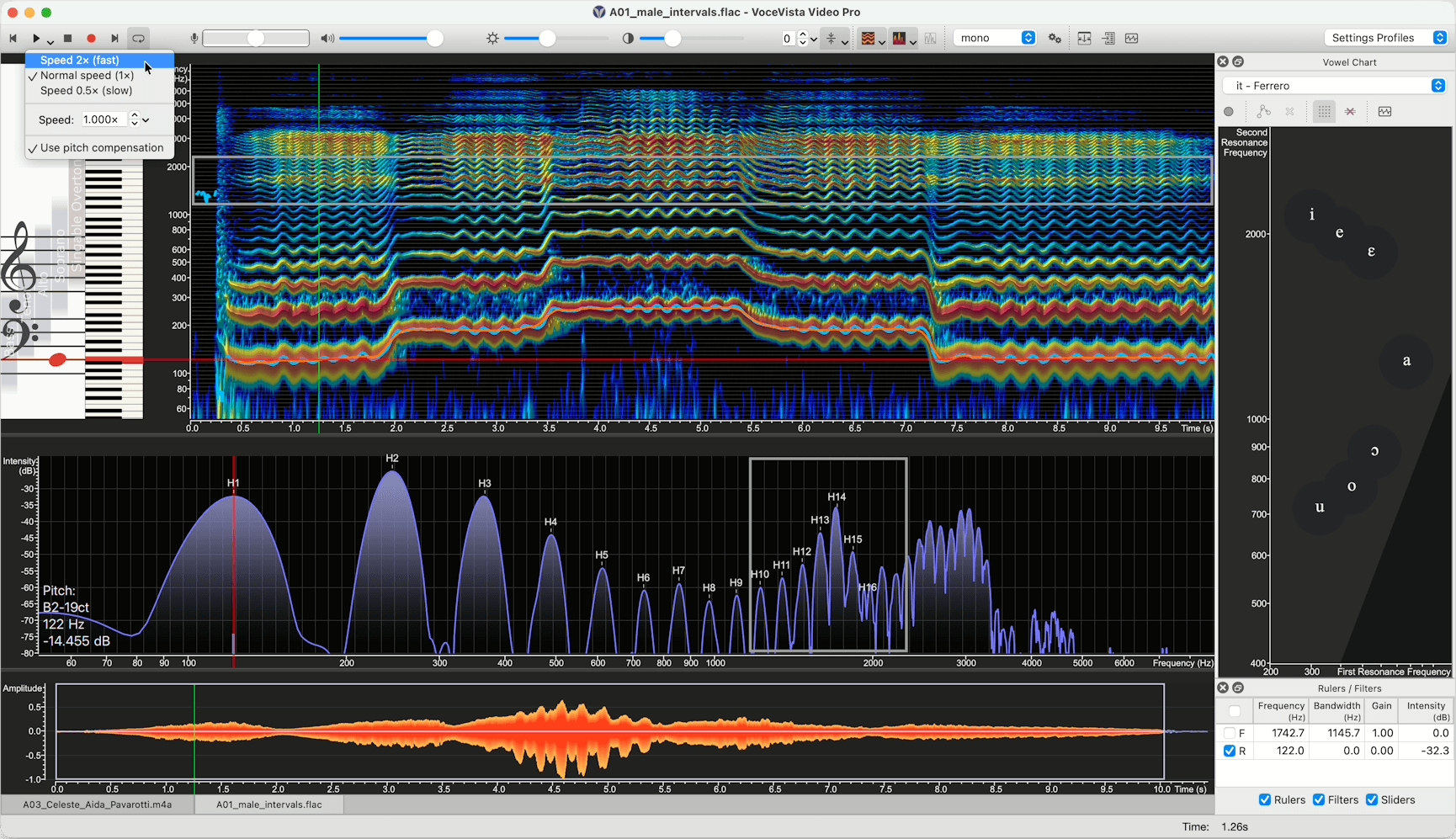
This update brings significant improvements to all editions of VoceVista Video. Under the hood, we’ve upgraded the graphics backend to lay the groundwork for future technical improvements (including running on iPad), while also boosting performance, visual quality, and driver compatibility.
Highlights of this release:
- Stacked horizontal spectrum layout
- Semi-transparent gradient fill for the Spectrum
- Analyzer Settings improvements — more varied and precise control over the Spectrum and Pitch time windows, with the option to unlink them, and default profiles for narrowband and broadband spectrum
- More fine-grained output volume mixer controls
- Variable playback speed for Slow-motion / fast playback
- Reverse playback
- Filter List View (VoceVista Video Pro)
Visual Design
Upgraded Graphics Backend
A new graphics backend brings better visual quality and performance across the application, and lays the groundwork for upcoming technical improvements such as running on iPad. You should also see improved driver compatibility on a wider range of systems.
Stacked Horizontal Spectrum
A new layout option lets the Short-Term view in horizontal orientation span the full width of the Long-Term view, giving you higher visual resolution for harmonic analysis.
- Quick toggle: click the down arrow next to the Short-Term view button on the toolbar and choose Horizontal Spectrum.
- Settings > Analyzer View > Acoustic, select Horizontal. Make sure Below Spectrogram is checked to stack the views vertically; deselect it to place them side-by-side.
Because the stacked horizontal spectrum suits most workflows better, the spectrogram orientation buttons are now hidden by default. You can re-enable them in the Advanced settings.
Gradient (Semi-Transparent) Spectrum Fill
A semi-transparent gradient fill is now available for the Short-Term Spectrum, improving visibility of the underlying harmonic intensity lines and to give a more modern, aesthetically pleasing appearance.
- Open Settings > Analyzer View and check Use gradient fill.
- Available for all three spectrum types that use a fill.
Smarter Spectrogram Background Lines
Background lines on the Spectrogram now offer multiple display options — piano notes, frequency increments, or following the ticks of the associated scale — so you can pick whichever reference best suits your analysis.
Waveform Improvements
- The Waveform display now shows background grid lines for easier amplitude reference.
- A new command resets the Waveform amplitude zoom in a single click.
Playback
Finer-Grained Mixer Controls
A new mixer gives you more precise control over the relative output volume of the recording, the piano notes, and the vowel chart — so each source can be balanced independently while you listen back. The vowel chart context menu now also has a volume control.
Variable Playback Speed
Slow down or speed up playback to study rapid articulations or subtle vibrato in detail.
- Pitch compensation: enable to keep the pitch stable while changing speed (time-stretching). Disable to allow the pitch to rise or fall naturally with the speed (resampling).
- To use: select a portion of the recording, or make no selection to apply to the entire file.
- Action: click the down arrow between the Play and Stop buttons, then choose a preset or enter a custom value.
- Global control: Settings > Playback.
Reverse Playback
Analyze phonetic detail or vocal onsets by playing audio in reverse.
- Highlight a selection, or make no selection to reverse the entire file.
- Select Edit > Reverse, then press Play.
Analyzer Settings
Separate Spectrum and Spectrogram Time Windows
The Analyzer Settings now offer more varied and precise control over the time windows used for the Spectrum and the Spectrogram, and you can unlink the two so each is optimized independently — for example, prioritizing temporal precision in the spectrogram while keeping ultra-high frequency resolution in the spectrum.
- Open Settings > Analyzer Settings.
- Deselect Link time windows. Separate controls appear for the Spectrogram and the Spectrum.
Wideband / Narrowband Spectrogram Presets
A new preset makes it easy to switch between narrowband and wideband spectrogram views without manually changing FFT settings.
Gaussian FFT Window Function
A Gaussian window function has been added for compatibility with Praat — useful when cross-referencing analysis between the two applications.
- Available under Settings > Analyzer Settings.
Frequency Filters
Refined Visual Design
Frequency filters have a cleaner visual design, including adjustable line thickness for better visibility on high-resolution displays or with complex multi-layer spectrograms.
- Open Settings > Fonts and Colors > Colors > Rulers and Filters > Frequency Filter Frame Line and enter a higher value to thicken the line.
Insert Filter at Cursor Position
Add a new frequency filter directly at the current cursor position instead of always at a default location.
- Shortcut: press F to insert a filter at the cursor.
Adjustable Filter Size
Fine-tune the selectivity of frequency filters by adjusting the filter size.
- Behavior: higher values narrow the effective range for more precise filtering; lower values widen it.
- Action: Settings > Advanced Settings > Frequency Filters > Filter size.
- Note: higher (narrower) values may introduce slight latency during real-time playback. Changes apply automatically to all active filters.
Filter List View (VoceVista Video Pro)
A new dedicated list view for managing your frequency filters. See all filters at a glance, edit their parameters numerically, and toggle them on or off without hunting through the spectrogram.
Vowel Chart
Volume Control
The Vowel Chart context menu now has a control for the output volume of the vowel chart and the sound generator playback. That same control can also be found on the Playback Settings.
Aspect Ratio Lock
To preserve the scientific integrity of your F1 / F2 data, the Vowel Chart now includes an aspect ratio lock. This prevents the frequency coordinates from distorting when the window is resized.
- Default: enabled.
- Quick toggle: right-click the Vowel Chart and choose Lock Aspect Ratio.
- Global setting: Settings > Advanced Settings > Vowel Chart > Lock aspect ratio.
Cleaner Defaults
Resonance rulers are no longer synchronized across windows by default. They appear once you click the Vowel Chart, keeping the interface uncluttered until you need them. If you do want to synchronize rulers across all windows, you can enable that in the vowel chart context menu or the Advanced settings.
Markers (VoceVista Video Pro)
Edit Marker Range Numerically
Marker ranges can now be set by entering precise numeric values in addition to dragging — useful when you need exact, repeatable selections. This is done by clicking on the Marker time range field above the marker text editor field on the File / Marker List view.
EGG (VoceVista Video Pro)
Mini-EGG Display
A new compact display visualizes the relationship between the EGG Wavegram and the glottal cycle, giving you a clearer view of glottal behavior at a glance.
Stacked Short-Term EGG Layout
A new layout option places the Short-Term EGG above the Short-Term Audio, making the visual organization of the EGG and audio views more consistent.
Other Improvements
- Refreshed translations and tooltips throughout the application for clarity and consistency.
- New default keyboard shortcuts added for many commands that previously had none.
- macOS: VoceVista now prevents accidental running directly from the mounted DMG installer, avoiding the confusion that can cause.
Fixes
- The unfiltered spectrum no longer appears when all filters are deleted or disabled.
- Removed the alpha channel from the color table on the popup color dialog.
- Fixed rounding inconsistencies between cursor lines on scales and on the spectrogram.
- Restored the Level Meter context menu for picking the input device on devices that don’t expose a software volume control.